Metrics
In this chapter you are going to learn how to read device metrics: performance charts, On/Off states and RSSI.
Metrics show how hard a device is working and when it was reachable. Use them to spot an overloaded device, check what happened during an update, or see when a device went offline, without logging into it.
You can find them on the device details page:
Where |
What it shows |
|---|---|
Performance tab |
CPU usage, memory usage, incoming and outgoing network traffic |
On/Off states card on the Info tab |
When the device was online and offline in the last 24 hours |
RSSI card on the Network events tab |
The strength of the radio signal the modem receives |
Before you start
The device must be online. It sends its data by itself every minute once metrics are on
A new device needs a few minutes. The charts fill in after the device sends its first data
Open the Performance tab
In the sidebar, open Devices.
Click the device you want to check.
Open the Performance tab.
The page refreshes the charts every minute while it is open, so you don’t need to reload it. Hover over a chart to see the exact value and time. Drag across a chart to zoom into a shorter period.
Choose a time range
Use the selector above the charts. The charts show the last hour by default.
Range |
Detail |
|---|---|
1 hour |
One point per minute |
6 hours |
One point per minute |
24 hours |
One point per 2-3 minutes |
7 days |
One point per hour |
Performance charts
The Performance tab has four charts. The number next to each chart’s title is the latest value.
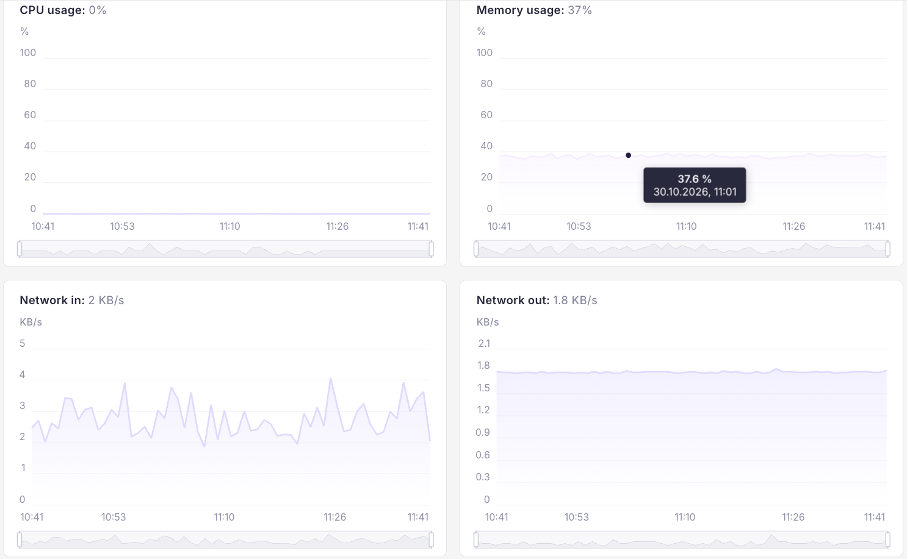
CPU usage
How busy the device’s processor is, from 0 to 100%.
Short peaks during an OS update or an application deployment are normal
If CPU usage stays high for a long time, the device may respond slowly. Check which applications run on it
Memory usage
How much of the device’s memory is in use, from 0 to 100%.
Memory usage that slowly climbs and never drops can mean an application is using more and more memory
Memory usage close to 100% can make applications on the device restart or stop
Network in and Network out
How much data the device receives (Network in) and sends (Network out) per second, across all its network connections.
The unit adjusts to the values: B/s, KB/s, MB/s or GB/s
A large Network in peak usually means the device is downloading something, such as an update or an application image
On/Off states
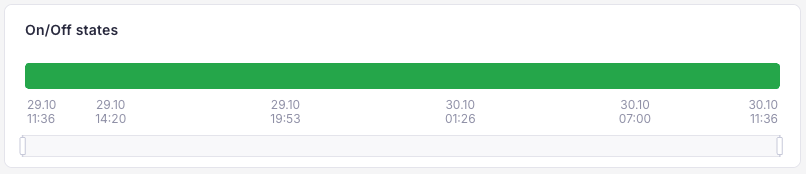
The On/Off states card on the Info tab shows the last 24 hours as a timeline:
Green (ON): the device was online
Red (OFF): the device was offline
A device counts as offline when it hasn’t been in contact with Orchestra for 3 minutes or more. Drag across the timeline to zoom in.
RSSI
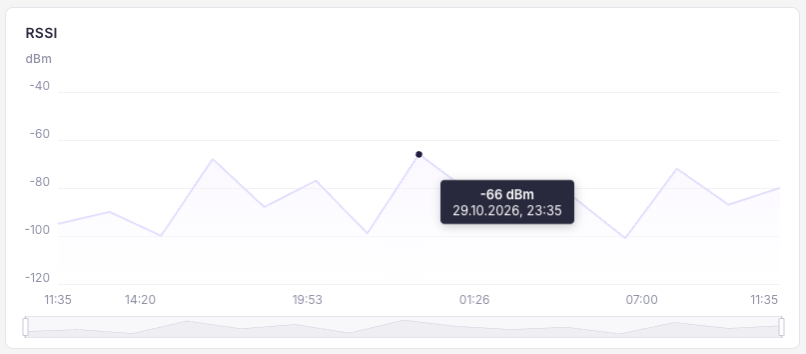
The RSSI card on the Network events tab shows the strength of the radio signal the device’s cellular modem receives over time, in dBm.
Values closer to 0 mean a stronger signal. For example, -70 dBm is stronger than -100 dBm
Values around -100 dBm or lower mean a weak signal. The connection may be slow or drop
To check a different period, choose it in the list above the cards, for example 24 hours, or enter your own From and To dates. If the device has more than one modem, select the modem by its IMEI first.
When you see “No data”
What you see |
Why |
What to do |
|---|---|---|
All charts say No data on a new device |
The device hasn’t sent its first data yet |
Wait a few minutes and open the tab again |
All charts say No data on a device that worked before |
The device is offline, or its metrics agent isn’t running |
Check On/Off states and the device status. If the device is online, contact support |
One chart says No data, the others work |
That chart’s data couldn’t be loaded |
Wait a minute for the next refresh |